Campaign Schedules, Send Times, and Email Delay
Setting up a campaign schedule sounds simple but there is more going on behind the scenes than most users realize. This article explains when emails actually go out, what happens after hours, why emails sometimes trickle out slowly instead of all at once, and how to get the most out of your sending window each day.
Overview
A campaign schedule controls when your emails go out. The email delay controls how quickly they go out one after another. Understanding both helps you set realistic expectations for how fast your campaign moves and why emails sometimes trickle out slowly instead of all at once.
What Is a Campaign Schedule?
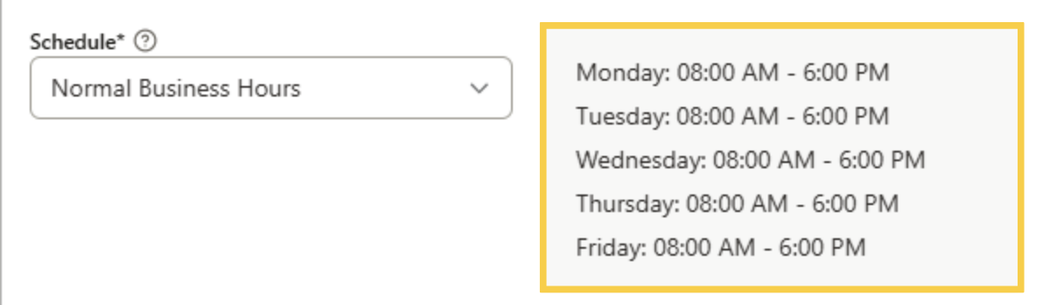
A campaign schedule sets the days and hours your campaign is allowed to send emails. Think of it like business hours for your campaign. When the schedule is open emails go out. When it is closed nothing sends.
You set the schedule’s timezone, which days of the week are open, and what hours emails can go out each day. Most teams use Monday through Friday during normal business hours to match when their prospects are most likely to be at their desks.
Closed days like weekends are skipped entirely when the campaign counts step days. A contact due on a Saturday will send on the next open day instead.
What Happens After Hours?
When the schedule closes for the day any emails that did not go out stay Active. They do not disappear or get skipped. They will send as soon as the schedule opens again the next day.
Nothing new becomes Active after hours either. Contacts wait until the schedule opens before moving from Pending to Active.
When Do Daily Limits Reset?
Each inbox’s daily send limit resets at midnight in the inbox owner’s timezone. That timezone comes from the owner’s business hours setting in Seamless. If no timezone has been set Eastern time is used by default.
Each inbox resets on its own so if you have inboxes owned by people in different timezones they may reset at different times. This is worth keeping in mind if you notice sends picking up at an unexpected time of day.
What Is the Email Delay?

The email delay is the minimum amount of time Seamless waits between sending one email and the next from the same inbox. The default is 60 seconds.
Here is why this matters. At 60 seconds one inbox can send at most 60 emails per hour. If you have a daily limit of 250 emails it will take that inbox about 4 hours and 10 minutes to send them all. If your schedule is only open for 6 hours and you have 300 emails to send from one inbox they will not all go out in a single day.
If a campaign has multiple inboxes each inbox runs its own delay at the same time. So three inboxes can each send one email every 60 seconds which means three emails go out every 60 seconds instead of one. Adding more inboxes is the best way to send faster without shortening the delay.
The email delay also applies to one-off emails. If you send a one-off email from an inbox the next automatic campaign email from that inbox will wait a full delay period before going out.
Why Are My Emails Going Out Slowly?
This is almost always caused by one of two things.
The email delay is spacing them out. At the default 60 second delay one inbox sends one email per minute. If you have a large list this can feel slow. Adding more inboxes is the fastest fix.
The schedule is not open long enough. If your schedule is only open for a few hours and the email delay is long your inbox may not have enough time to send everything in a single day. Either open the schedule for more hours or add more inboxes to run in parallel.
Can I Change the Email Delay?
The email delay is an organization-wide setting found under Settings → Emails → Settings. Only an admin can change it. Shortening the delay means more emails per hour but also a higher risk of being flagged by email providers as automated sending. We recommend keeping the delay at 180 seconds or more for the best deliverability.
What If the Inbox Runs Out of Sends Mid-Day?
If an inbox hits its daily limit before the schedule closes any Active emails wait and keep trying until the schedule closes. They will send the next day when the limit resets and the schedule opens again.
If the inbox is blocked by Google or Microsoft because it hit their own internal sending quota the email does not retry the same day. It waits until the next time the schedule opens.
Quick Summary
- A campaign schedule sets the days and hours emails are allowed to go out.
- Nothing sends after hours. Emails wait for the next opening.
- Daily limits reset at midnight in the inbox owner’s timezone.
- The email delay is the wait time between sends from the same inbox. Default is 60 seconds.
- At 60 seconds one inbox sends about 60 emails per hour.
- Adding more inboxes is the best way to send faster.
- If an inbox runs out of sends mid-day remaining emails wait and send the next day.