We’ve all heard the statistic that bad data costs companies a fortune: $12.9 million annually, to be specific.
But beyond bounced emails and dead direct dials, what does bad data look like? Duplicates. Where the same person or company appears more than once in your CRM with slightly different emails or names.
A duplicate Salesforce record is easy to create, but fixing it can be complicated.
If two reps call the same buyer, it’s not only a nuisance, but it makes the company look disorganized. This can really hurt your brand reputation. And once your reputation is tarnished, it’s hard to recover.
The only way to avoid this is to have a solid deduplication tool.
Deduplication is the cheapest way to run quality control on your data because it allows you to catch mistakes before the bad record ever exists.
Deduplication isn’t about cleaning up; it’s a configuration problem. Get the match thresholds and overwrite rules right before the first import, and you’ll never have to worry about your CRM getting messy.
At Seamless, data hygiene is one of our top priorities, and deduplication controls are one of the methods we use to ensure that our B2B data is fresh.
In this article, we’ll cover our Salesforce deduplication controls, what each one does, the order to set them in, and how to tell afterward whether they worked.
What deduplication does in a Seamless import, and why it matters
Deduplication is the check we run before we write anything into Salesforce. When you find a lead from Seamless, we compare the contact or company against what already exists, and the settings you choose decide what counts as a match.
Salesforce runs its own layer too. And if your org already has standard duplicate rules and matching rules, that will fire on top of ours.
Salesforce also documents what to know about duplicate rules, how to customize them, and the standard lead duplicate rule.
Seamless’ settings and Salesforce’s rules do two totally different jobs. Our settings decide whether we create a record at all, and yours decide what Salesforce does with what we send.
How to configure deduplication before your 1st import
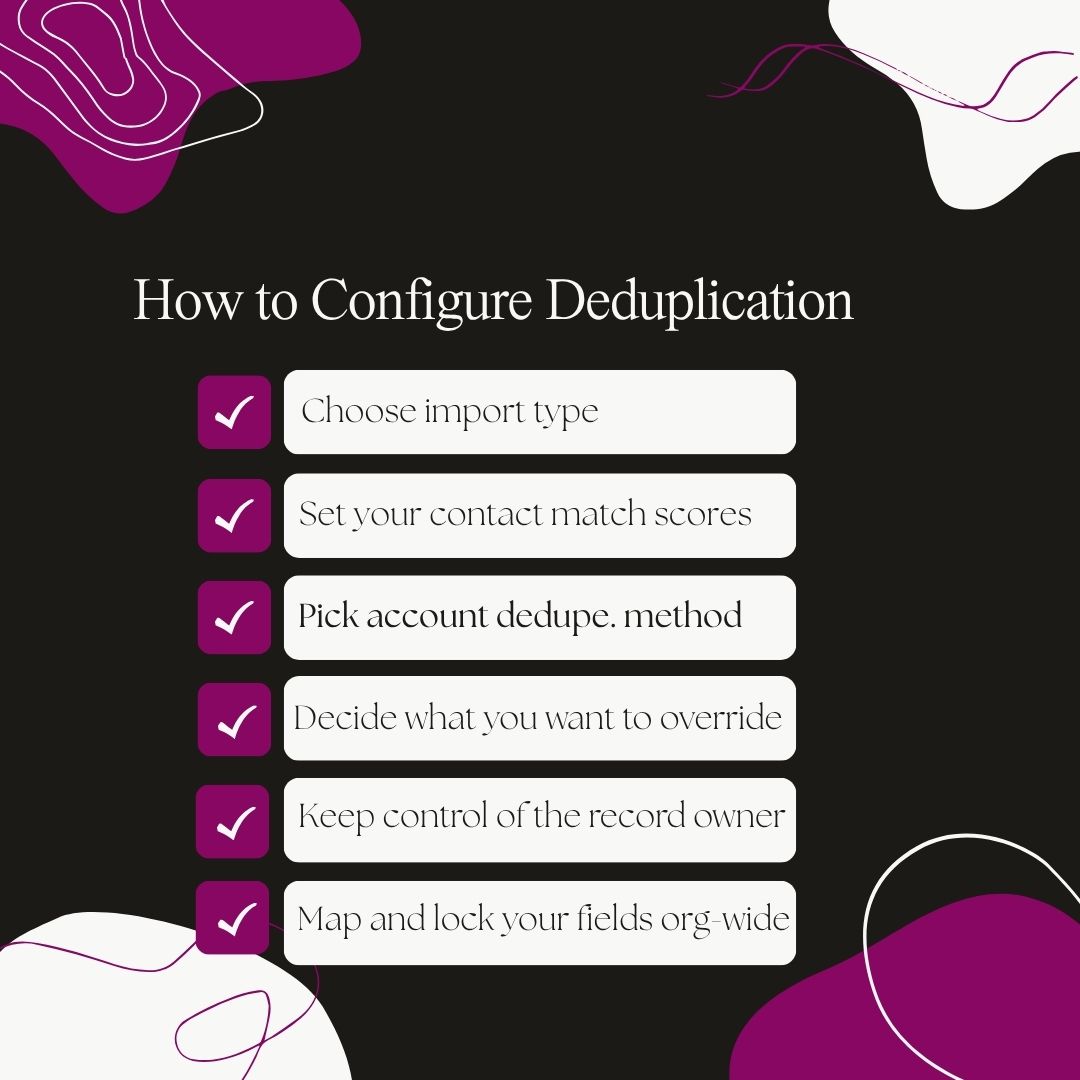
1. Choose your Salesforce import type
Pick whether contacts arrive as Leads or Contacts under Salesforce Import Type. A Lead creates a Lead record. A Contact creates both a Contact and an Account.
This step decides which object your dedupe checks run against.
2. Set your contact and company match scores
Set your Contact Import Match Score. A setting of 100% requires a perfect match to an existing record. We recommend setting it to 95% because lower thresholds catch more near-duplicates and risk false matches.
Setting Company Import Match Score, will help you catch duplicate accounts.
3. Pick an account deduplication method
Account Deduplication Method offers two choices:
- Website: Uses the company website as the primary deduplication field
- Name: Uses the company name as the primary deduplication field.
Name catches more, but it will occasionally merge two different companies if they have similar names, so be mindful of this.
4. Decide what you want to override
The Override toggle governs every mapped field. When you toggle the override button on, you can overwrite existing CRM values with data from Seamless. Toggle it off, and Seamless will only fill in missing or empty fields.
Off is the safer default for an established org.
Make sure each field is toggled on; this way you know that new data coming in is more trustworthy than what a rep entered over a year ago.
5. Keep control of the record owner
Bypass Lead Assignment Rules prevents lead assignment rules in your CRM from overwriting the selected Lead Owner. You can also set Lead Source, Campaign, and Owner using values that already exist in your CRM.
6. Map your fields and lock them org-wide
Each mapping pairs a Seamless Field with a CRM Field. Use Add New Mapping for standard pairs and Add Custom Mapping to send a static value.
Now you can decide who can change these settings. Set Org Wide applies a mapping across the organization, and Lock Org Wide prevents users from changing it.
The settings that decide whether a duplicate gets created
Let's Review!
Now that we've gone over some core deduplication tasks, in this quick video, we'll walk you through the deduplication settings you can use in Salesforce to keep your data cleaner and prevent lookalike records from becoming a headache.
A pre-import checklist
Make sure before you do any bulk import, you run this checklist. It takes ten minutes and saves you the headache of having to clean up a mess of duplicates later.

- Set the Import Type to Lead or Contact.
- Set contact and company match scores to 95% or higher and choose your account deduplication method.
- Enable duplicate checking across leads and contacts.
- Toggle on the override button for fields you want refreshed.
- Turn on your CRM Alerts so reps see an existing record before they import.
- Lock your field mappings org-wide if you don’t want reps to edit them.
- Run a test import of a few dozen contacts, and manually review them against your settings before you do bulk imports.
How to tell whether it is working
If you get duplicates after you import, that usually means that you set your match score too high. Let’s say you set your match score at 100%. A middle initial or a changed job title will be enough to miss an existing record.
Count duplicates created per hundred records imported, before and after a settings change. That number is the only real measure, and it should fall toward zero.
Good data being replaced by worse data means your Override is toggled on. Turn it off globally and re-enable it field by field.
Watch the review load too. If CRM Alerts fire constantly, your match score is rejecting genuinely new records.
Then track how long it holds. Records decay whether or not they were clean on arrival, which is what our verification stages are for.
Clean up your Salesforce imports with Seamless
Six settings and a test import, and you’ve solved a lot of your bad data issues before they become… a problem.
Salesforce is one of several integrations Seamless supports, and the same match-score and override logic applies across the others. We go deeper on the enrichment side in enriching Salesforce leads with verified contact data.
For teams running this at volume, the same controls are reachable programmatically through the Seamless API and MCP server.
Import a clean test batch
Set the thresholds, run a small import, and check the result yourself.
Frequently asked questions about Seamless.AI and Salesforce deduplication
How does Seamless.AI avoid creating duplicate Salesforce records?
At Seamless, we avoid creating duplicate Salesforce records by comparing each import against what already exists in your org. You set a match score percentage that defines how close a match has to be. We can also check across both leads and contacts, and alert the rep when a record already exists.
What is a good contact import match score?
A good contact import match score starts at 95%, which is the recommended floor. A setting of 100% requires a perfect match to an existing record, so a middle initial or a changed title can cause a miss. Lower thresholds catch more near-duplicates but also raise the risk of a false match.
Does Seamless.AI overwrite existing Salesforce fields?
Seamless overwrites existing Salesforce fields only when the Override toggle is on. With Override off, we fill in missing or empty CRM fields and leave populated ones alone. The control applies per mapped field, so you can refresh a bounced email while protecting a title a rep just corrected.
Can Seamless.AI check both leads and contacts for duplicates?
Seamless can check both leads and contacts for duplicates through a setting that enables dual-object checking in Salesforce. Turning it on matters when your org converts leads, because a person may exist as a converted lead and a contact. You can also choose whether to update a converted lead's contact record.
How do I stop Seamless.AI from changing my lead owner?
To stop Seamless from changing your lead owner, turn on Bypass Lead Assignment Rules. That setting prevents lead assignment rules in your CRM from overwriting the Lead Owner you selected. Note that bypassing assignment rules is not supported when you use Import Filtered or Import All.
What happens when a contact does not have a validated email?
A contact without a validated email imports only when you enable Allow Contacts or Leads to Import without a Validated Email. Left off, we hold those records back. You can also set a Total AI Threshold, which requires a minimum score on the primary business email before any import proceeds.
How do I keep Salesforce records fresh after the first import?
To keep Salesforce records fresh after the first import, re-enrich on a schedule rather than once. Our Job Changes filter narrows that work to people who moved, across windows of 30, 60, 90, 180 or 365 days, so you re-check what changed instead of reprocessing the whole database.
Read similar stories
- Enrich Salesforce leads with verified contact data
- How to use Salesforce with Seamless
- The Seamless MCP server: what RevOps teams can build
More from our sales prospecting coverage